A Coordinated Electric System Interconnection Review—the utility’s deep-dive on technical and cost impacts of your project.
Challenge: Frequent false tripping using conventional electromechanical relays
Solution: SEL-487E integration with multi-terminal differential protection and dynamic inrush restraint
Result: 90% reduction in false trips, saving over $250,000 in downtime
Automating PSS/E with Python — A Practical Engineering Workflow
JJune 26, 2026 | Blog
Siemens PTI’s PSS®/E is the workhorse of bulk-system planning and interconnection studies, and its graphical interface is excellent for interactive, one-off analysis. But the moment a study involves hundreds of buses, dozens of contingencies, or a base case that must be solved, screened, and reported over and over, point-and-click stops scaling. The answer is automation — driving PSS/E from Python so the software becomes a callable engine inside a repeatable, auditable workflow.
This guide walks through the automation path our team relies on every day: how to reach PSS/E from outside its own GUI, how to open and solve a case programmatically, how to extract results the software will not record for you, and how to scale single-value queries into bulk data pulls. It closes with two anonymized case studies showing where this discipline pays off in real interconnection work.
WHY AUTOMATE AT ALL?
Recording macros inside the GUI is a fine first step, but it is limited — you can replay a fixed sequence and little more. Accessing PSS/E externally through Python unlocks the full language: loops, lists, conditionals, file I/O, data structures, and integration with the rest of your toolchain. That is the difference between a recorded button-press and a genuine
engineering pipeline .
1. Two Ways to Use Python with PSS/E
There are two distinct modes. The first is in-GUI recording: you press record, perform actions in the interface, stop, and PSS/E writes the equivalent Python (or response-file) script, which you can replay. It is the fastest way to discover the right API call for a task you already know how to do by hand — but it caps your capability at whatever the GUI exposes.
The second mode is external control: you launch Python first, import the PSS/E libraries, and initialize the engine headlessly. Now PSS/E runs underneath your script. You can iterate over thousands of elements, branch on results, and write outputs anywhere — the full power of the language is available. The rest of this guide focuses on this mode, with GUI recording used as a learning aid to find the calls you need.
Version-to-Python mapping (know this before you start)
PSS/E ships with a bundled Python interpreter, and the version pairing matters — calling the wrong interpreter is the single most common reason an import fails. The current landscape:
| PSS/E Version | Bundled Python | Architecture / Notes |
|---|---|---|
| v32 | Python 2.5 | Legacy; still seen in some utilities and academia |
| v33 | Python 2.7 | Very widely deployed; 32-bit |
| v34 | Python 2.7 and 3.x | Multiple environments; 2.7 often easiest for external access |
| v35 | Python 3.9 | 64-bit; modern toolchain |
Pair the interpreter to the PSS/E version: launch Python 2 for v33/34, Python 3 for v35.
2. Reaching PSS/E from Outside the GUI
Start from a command prompt and launch the matching interpreter (for example, py -2 for the Python 2.7 that ships with v33/34, or py -3 for the Python 3.9 in v35). The classic, explicit setup tells Python where PSS/E lives, registers that location on both the interpreter and the OS search paths, then imports the core API module and initializes the engine:
The explicit method — full control, but several steps to remember.
import os, sys
# Point at the PSSBIN folder of your installation
psse_path = r"C:\Program Files\PTI\PSSE33\PSSBIN"
# Register PSSBIN on the interpreter and the OS environment
sys.path.append(psse_path)
os.environ['PATH'] = psse_path + ";" + os.environ['PATH']
# Import the core API and initialize PSS/E headlessly
import psspy
psspy.psseinit()
Those path steps are easy to forget. A cleaner approach uses a small helper module that performs the path wiring for you. Install it once with pip, then a single call selects the version and prepares the environment:
The convenience method — the helper handles sys.path, PATH, and environment wiring.
# One-time install from the command prompt:
# pip install psse_path
from psse_path import add_psse_path
add_psse_path(34) # selects v34; omit the argument if only one version is installed
import psspy
psspy.psseinit()
For v35, the workflow is simpler still: from a Python 3 prompt, importing the version package wires the environment automatically — no manual path handling or extra install required — after which you import psspy and call psseinit() as usual.
KEENTEL PRACTICE NOTE
We wrap initialization in a single, version-aware startup routine kept under version control. Every study script imports the same routine, so the environment is identical on every engineer’s machine and on the build server. Reproducibility starts at psseinit().
3. Opening and Solving a Case Programmatically
With the engine live, the OS library handles navigation to your working directory and the case API loads the saved case (.sav). From there you can solve it exactly as the GUI would:
Open a case folder, load the .sav, and solve — entirely from script.
import os
work_dir = r"C:\Program Files\PTI\PSSE33\EXAMPLE"
os.chdir(work_dir) # move to the case folder
print(os.getcwd()) # confirm current working directory
savfile = "savnw.sav"
psspy.case(savfile) # open the saved case
# Solve with fixed-slope decoupled Newton-Raphson (FDNS), default options
psspy.fdns([0, 0, 0, 1, 1, 0, 0, 0])
How do you discover the exact solve call and its option flags? Record it. Perform the power-flow solution once in the GUI with the record function active, stop, and PSS/E writes the precise API line — including the default option vector — which you paste straight into your script. Recording is the fastest route from “I know how to do this by hand” to “I have the API call.”
4. Extracting Results: Activities Are Recorded, Results Are No
This is the concept that trips up newcomers. In PSS/E, activities can be recorded but results cannot. An activity is an action — solving a power flow, building a subsystem, running a contingency. The voltage profile, branch flows, and mismatches that come out of that action are results, and there is no record button for them. To get results into Python for further analysis, you query them deliberately through the data-retrieval APIs documented in Chapters 7–9 of the API reference (api.pdf, in the installation’s doc folder).
System-level and single-element queries
Most retrieval APIs return a tuple whose first element is an error code (0 means the call succeeded) followed by the value. Complex returns carry real and imaginary parts — for power, real is MW and imaginary is MVAr. A representative set:
Each call returns (error_code, value); change the keyword to fetch a different quantity.
ierr = psspy.solved() # 0 = met convergence tolerance
ierr, base_mva = psspy.sysmva() # system base MVA (e.g., 100.0)
ierr, mismatch = psspy.sysmsm() # largest bus mismatch (MVA)
# System totals take an argument that selects the quantity
ierr, demand = psspy.systot('LOAD') # complex: MW + jMVAr
demand_mw = demand.real
demand_mvar = demand.imag
# Single-element retrieval
ierr, vbase = psspy.busdat(101, 'BASE') # nominal kV
ierr, vkv = psspy.busdat(101, 'KV') # solved kV
ierr, vpu = psspy.busdat(101, 'PU') # per-unit voltage
ierr, charg = psspy.brndat(151, 152, '1', 'CHARG') # line charging
ierr, agen = psspy.ardat(1, 'GEN') # area 1 generation (complex)
The pattern is consistent across element types — busdat for buses, brndat for branches, ardat for areas, and their relatives for zones, machines, plants, and loads. The API call stays the same; the keyword (PU, KV, CHARG, RATEA, GEN, and so on) selects what you get back. Learn the pattern once and the whole library opens up.
5. Scaling Up: Lists and Iteration for Bulk Retrieval
Querying one bus at a time is fine for a spot check, but interconnection studies need results for hundreds of elements. Python lists — ordered, iterable, mutable collections — turn a single-value query into a bulk operation. Define the elements of interest, loop over them, and collect the results:
A for-loop plus a results list scales one query into many; zip() pairs inputs with outputs.
# Buses of interest (could be the entire bus list from the case)
buses = [101, 151, 201, 301, 3004, 3008]
bus_pu = [] # start with an empty list
for bus in buses: # iterate element by element
ierr, vpu = psspy.busdat(bus, 'PU')
bus_pu.append(vpu) # grow the results list
# Pair each bus with its voltage for clean reporting
bus_data = zip(buses, bus_pu)
for record in bus_data:
print(record[0], record[1]) # index 0 = bus, index 1 = pu voltage
Two details matter in practice. First, Python is zero-indexed — the first element of a record is at index 0, not 1. Second, indentation is syntax, not decoration: the body of a loop must be indented consistently or the interpreter will reject it. With those in hand, the same template extends naturally to branches, transformers, and contingency sets — the foundation of any automated screening routine.
6. Response Files, the CLI, and Progress Output
Python is the most powerful automation surface, but PSS/E offers two complementary mechanisms worth knowing.
Response files (.idv) and recorded scripts
When you record an activity, you can save it either as a Python script or as a response file (.idv) — a batch format that replays a fixed sequence of activities. Recorded option flags appear as 0s and 1s (again reflecting zero-based indexing). Response files are ideal for deterministic, repeatable solve-and-report sequences; Python is the choice when you need logic, loops, and data handling around those steps.
The Command Line Interface (CLI)
PSS/E’s CLI, reachable from the command-line input section of the output bar, lets you load cases and run reports without touching the GUI — for example, opening a case with the CASE activity (entry is case-sensitive), listing data by category, locating elements with FIND, or screening voltages with a limit check (VCHECK) that flags buses outside a defined band (with Vmax greater than Vmin). The full CLI command set spans roughly twenty documented chapters and is a fast path for interactive, no-GUI investigation.
Capturing the progress report (PDEV)
The iterative solution log — the progress output — is more than a status readout; it is a diagnostic record. Through Input/Output Control, the Direct Progress Output (PDEV) option redirects that log from the terminal to a file. This is invaluable when reconciling a case migrated between platforms (for example PSLF, PSCAD, or DIgSILENT into PSS/E): capture the progress output before and after each adjustment, then compare logs to see exactly which changes drove convergence. You can append successive runs to one file and set the lines-per-page for clean review.
THE ENGINEERING PAYOFF
Automation is not about replacing engineering judgment — it is about removing the manual, error-prone steps that stand between a solved case and a defensible result. Scripted retrieval is repeatable, auditable, and fast, which is exactly what regulators, interconnection customers, and internal QA all expect of a modern study workflow.
Case Studies
The following case studies are drawn from Keentel Engineering project experience. In keeping with our confidentiality practice, all client names, project names, locations, and proprietary identifiers have been removed; figures are representative and rounded to illustrate the engineering approach rather than any specific engagement.
CASE STUDY 01
Automated Voltage-Compliance Screening Across a Multi-Point Interconnection Portfolio
Challenge.
A developer client advanced a portfolio of utility-scale generation and storage project sharing a congested study area, requiring steady-state voltage screening across more than 1,500 monitored buses under a large matrix of dispatch and contingency conditions. The original workflow relied on manual, bus-by-bus inspection in the PSS/E GUI after each solved scenario. The effort was slow, difficult to reproduce between analysts, and prone to transcription error when results were copied into spreadsheets for the compliance narrative.
Approach.
Keentel replaced the manual review with a Python layer driving PSS/E externally. A version-aware startup routine initialized the engine identically on every run; the monitored-bus set was loaded once into a Python list; and a screening function iterated the list with busdat, retrieving per-unit voltage for each bus after every solved scenario. Every API return was error-code-checked before use, and results were paired with bus identifiers using zip() and written directly to a structured output file — eliminating manual copying entirely. Buses outside the applicable voltage band were flagged automatically, mirroring a CLI-style limit check but applied programmatically across the full scenario matrix.
Result.
Per-scenario review time fell from hours of manual inspection to a script run measured in minutes, and the screening became fully reproducible: any analyst could regenerate identical results from the same inputs. The structured outputs fed directly into the compliance documentation, and the error-code checks surfaced two silently failed retrievals in an early batch that manual review would likely have missed — reinforcing the audit value of scripted retrieval in an interconnection-study context.
Engineering takeaway.
List-driven iteration over single-element APIs turns a tedious manual task into a repeatable screening tool. The discipline that makes it defensible — standardized initialization, error-code checking, and direct-to-file output — is what distinguishes production automation from a one-off macro.
CASE STUDY 02
Cross-Platform Case Reconciliation During a Power-Flow Model Migration
Challenge.
A client needed a large base case migrated from a different power-system platform into PSS/E for an interconnection study, then validated to confirm the migrated model behaved consistently with the source. After import, the case did not converge cleanly, and the team needed a structured way to identify which adjustments restored convergence — without resorting to undocumented trial-and-error that would be impossible to defend later.
Approach.
Keentel combined PSS/E’s Direct Progress Output (PDEV) with scripted data extraction. Before and after each modeling adjustment, the iterative progress log was captured to file via PDEV, building a documented trail of how each change affected the solution path and tap-stepping behavior. In parallel, a Python routine extracted system totals (systot for load and generation) and key bus voltages (busdat) from both the source-platform export and the PSS/E case, then compared them element by element to quantify discrepancies and confirm alignment as the model was tuned. Successive progress runs were appended to a single log for side-by-side comparison.
Result.
The captured progress logs isolated the specific adjustments that drove convergence, and the scripted comparison confirmed that migrated system totals and voltage results matched the source model within an acceptable tolerance once tuning was complete. The result was a defensible reconciliation package — progress logs plus a quantitative discrepancy report — that documented not just that the migrated case converged, but exactly why, and that it represented the same system as the original.
Engineering takeaway.
Progress output is a diagnostic asset, not just a status readout. Pairing PDEV capture with scripted, element-by-element comparison converts an opaque convergence struggle into a documented, reviewable migration — the kind of traceability that holds up under study review.
Disclaimer & Notice
This document is provided by Keentel Engineering for general informational and educational purposes only. Code patterns are illustrative and simplified to convey workflow; API signatures, option vectors, and behavior vary by PSS/E version, and you should consult the API and CLI references shipped with your installation for authoritative usage. Examples reference the standard sample case distributed with PSS/E.
The case studies are anonymized composites of project experience; all client, project, and location identifiers have been removed and figures are representative. Nothing herein constitutes engineering, legal, or procurement advice. PSS®/E is a registered trademark of Siemens; PSLF, PSCAD, DIgSILENT, Python, and other product names are the property of their respective owners. Their use here is solely for factual technical context and does not imply any affiliation with, endorsement by, or sponsorship of Keentel Engineering.
Frequently Asked Questions
What is the difference between recording a macro in the GUI and accessing PSS/E externally?
GUI recording captures a fixed sequence of actions and replays them — useful but limited to what the interface exposes. External access launches Python first and runs PSS/E as a headless engine underneath your script, giving you the full language: loops, conditionals, lists, file I/O, and integration with other tools. Recording is best used as a discovery aid to find the exact API call for a task; external control is where real, scalable automation happens.
Which Python version do I need for my PSS/E version?
Match the interpreter to the bundled one. PSS/E v32 ships with Python 2.5, v33 with Python 2.7, v34 with both Python 2.7 and a 3.x environment, and v35 (64-bit) with Python 3.9. Launch the matching interpreter from the command prompt — Python 2 for v33/34, Python 3 for v35. Calling the wrong interpreter is the most common cause of a failed import. Note that Python 2.x environments are end-of-life, so newer work increasingly targets v35 with Python 3.9.
How do I open PSS/E from a plain Python prompt?
Tell Python where PSS/E lives, register that path on both the interpreter and the OS environment, then import the core module and initialize:
import os, sys
psse_path = r"C:\Program Files\PTI\PSSE33\PSSBIN"
sys.path.append(psse_path)
os.environ['PATH'] = psse_path + ";" + os.environ['PATH']
import psspy
psspy.psseinit()
If you would rather not manage paths by hand, install a helper such as psse_path (pip install psse_path), then call add_psse_path(version) before importing psspy. For v35, importing the version package handles the wiring automatically.
How do I open and solve a saved case in script?
Change into the case directory with the OS library, load the .sav with the case API, and call a solve routine — for example a fixed-slope decoupled Newton-Raphson solution:
import os
os.chdir(r"C:\Program Files\PTI\PSSE33\EXAMPLE")
psspy.case("savnw.sav")
psspy.fdns([0, 0, 0, 1, 1, 0, 0, 0]) # default FDNS options
If you are unsure of the exact solve call or its option flags, record the solution once in the GUI; PSS/E writes the precise API line for you to reuse.
Why can’t I just record the results of a power-flow solution?
Because in PSS/E, activities are recordable but results are not. The act of solving is an activity that the recorder can capture; the resulting voltages, flows, and mismatches are data the recorder ignores. To bring results into Python you must query them explicitly through the data-retrieval APIs (Chapters 7–9 of the API reference). This deliberate retrieval step is the gateway to any downstream analysis or reporting.
How do I read a bus voltage, a line’s charging, or system totals?
Use the single-element and system-total APIs. Each returns an error code (0 means success) followed by the value; complex returns split into .real (MW) and .imag (MVAr):
ierr, vpu = psspy.busdat(101, 'PU') # per-unit voltage
ierr, vkv = psspy.busdat(101, 'KV') # solved kV
ierr, charg = psspy.brndat(151, 152, '1', 'CHARG') # line charging
ierr, dem = psspy.systot('LOAD') # complex MW + jMVAr
load_mw = dem.real
The branch circuit identifier is alphanumeric in PSS/E, so it must be passed as a quoted string (e.g., '1'). To fetch a different quantity, keep the same API and change the keyword — RATEA, RATEB, RATEC for ratings, or GEN for an area’s generation.
How do I retrieve data for many buses at once instead of one at a time?
Put the elements in a list and iterate. Collect each result into a results list, then pair inputs and outputs with zip() for reporting:
buses = [101, 151, 201, 301, 3004, 3008]
bus_pu = []
for bus in buses:
ierr, vpu = psspy.busdat(bus, 'PU')
bus_pu.append(vpu)
for bus, vpu in zip(buses, bus_pu):
print(bus, vpu)
Remember that loop bodies must be indented (indentation is part of Python’s syntax) and that indexing is zero-based, so the first item of a paired record is at index 0. The same pattern scales to entire bus, branch, and contingency lists.
What is a response file (.idv), and when should I use it instead of Python?
A response file is a batch-style script that replays a fixed sequence of PSS/E activities — for instance, solve a case and produce a summary. You can generate one by recording in the GUI and choosing the response-file format. Use a response file when you need a deterministic, repeatable sequence with no logic. Choose Python when you need loops, conditionals, data structures, or integration with other systems. Recorded option flags appear as 0s and 1s, reflecting Python’s zero-based convention.
What can the Command Line Interface (CLI) do for me?
The CLI, accessed from the command-line input section of the output bar, lets you operate PSS/E without the GUI: load a case with the CASE activity (entry is case-sensitive), list data by category, locate elements with FIND, and screen results — for example a voltage limit check (VCHECK) that flags buses outside a band you specify (with Vmax greater than Vmin). The documented CLI command set runs to roughly twenty chapters and is a quick way to investigate a case interactively before scripting it.
How do I save the iterative progress output, and why would I?
Use Direct Progress Output (PDEV) under Input/Output Control to redirect the solution’s progress log from the terminal to a file. The progress log records the iteration-by-iteration path to convergence (including transformer tap stepping and similar actions), which makes it a diagnostic tool, not just a status display. It is especially valuable when migrating a case between platforms — PSLF, PSCAD, or DIgSILENT into PSS/E — because you can capture the log before and after each change and compare them to see precisely what drove the case to converge. You can append successive runs to one file and set the lines-per-page for readability.
What does an error code of 0 mean, and should I check it every time?
Most PSS/E retrieval and action APIs return an integer error code as the first element of their result. A value of 0 indicates the call completed normally; non-zero values signal specific conditions documented per API. In production study scripts, yes — check it every time. A silently failed call that returns a stale or default value can corrupt an entire batch of results, and a one-line check after each call is cheap insurance for a defensible study
Is this automation approach appropriate for formal interconnection studies?
Yes — with discipline. Scripted workflows are repeatable, auditable, and fast, which aligns well with the documentation and QA expectations of interconnection studies. The key practices are version-controlling your scripts, standardizing initialization so every run starts identically, checking error codes, and preserving inputs, outputs, and progress logs as part of the study record. Automation handles the mechanical work so engineers can concentrate on judgment, assumptions, and interpretation — which is where study quality is actually determined.

About the Author:
Sandip "Sonny" R. Patel, P.E.
IEEE Senior Member · Founder & CEO, Keentel Engineering
In 1995, Sonny Patel earned his Electrical Engineering degree from the University of Illinois. But degrees don't build legacies — action does.
For three decades, he has worked the power industry from every side of the table: 16 years as a utility engineer at Exelon/Commonwealth Edison; generation leadership across hydroelectric, industrial steam turbine, and a 9 GW renewable fleet; NERC Regional Entity Senior Compliance Engineer and Audit Team Lead, auditing some of the nation's largest utilities; and testing and commissioning lead on equipment up to 765 kV — the very top of the North American grid.Utility. Generator. Regulator. Consultant. Few engineers have seen all four seats. Fewer still have sat in them.
His experience spans nuclear, hydro, conventional generation, renewables, oil and gas, mining — and today's data centers, where he is authoring a three-book series on data center design. He is a Licensed Professional Engineer in six states and a Licensed Electrical Contractor in Florida (Unlimited EC) — he doesn't just design the work; he's qualified to stand behind its execution.Today, as Founder and CEO of Keentel Engineering, Sonny leads a nationwide team of engineers delivering substation design, power system studies, NERC compliance, and commissioning — done right, coast to coast.Three decades. Every side of the table. One standard: accountable engineering.
Services

Let's Discuss Your Project
Let's book a call to discuss your electrical engineering project that we can help you with.
About the Author:
Sandip "Sonny" R. Patel, P.E.
IEEE Senior Member · Founder & CEO, Keentel Engineering
In 1995, Sonny Patel earned his Electrical Engineering degree from the University of Illinois. But degrees don't build legacies — action does.
For three decades, he has worked the power industry from every side of the table: 16 years as a utility engineer at Exelon/Commonwealth Edison; generation leadership across hydroelectric, industrial steam turbine, and a 9 GW renewable fleet; NERC Regional Entity Senior Compliance Engineer and Audit Team Lead, auditing some of the nation's largest utilities; and testing and commissioning lead on equipment up to 765 kV — the very top of the North American grid.
Utility. Generator. Regulator. Consultant. Few engineers have seen all four seats. Fewer still have sat in them.
His experience spans nuclear, hydro, conventional generation, renewables, oil and gas, mining — and today's data centers, where he is authoring a three-book series on data center design. He is a Licensed Professional Engineer in six states and a Licensed Electrical Contractor in Florida (Unlimited EC) — he doesn't just design the work; he's qualified to stand behind its execution.
Today, as Founder and CEO of Keentel Engineering, Sonny leads a nationwide team of engineers delivering substation design, power system studies, NERC compliance, and commissioning — done right, coast to coast.Three decades. Every side of the table. One standard: accountable engineering.
Leave a Comment
Thank you for contacting us.
We will get back to you as soon as possible.
We will get back to you as soon as possible.
Oops, there was an error sending your message.
Please try again later.
Please try again later.
Related Posts
By SANDIP R PATEL
•
October 11, 2026
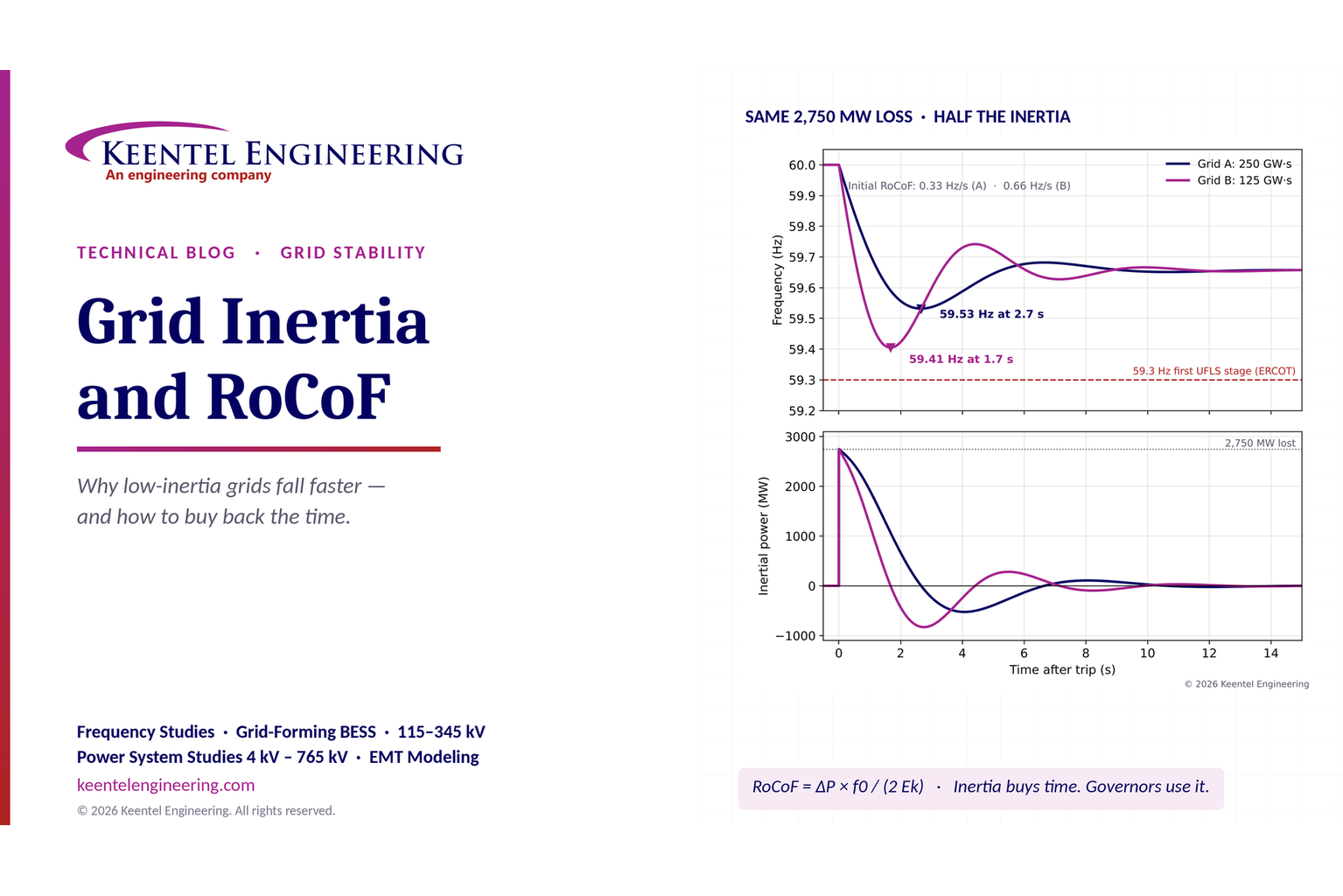
Explore grid inertia, RoCoF and frequency response, with swing equation calculations, frequency nadir analysis and US power system simulation examples.

By SANDIP R PATEL
•
October 11, 2026
Learn how STATCOMs improve voltage stability and prevent FIDVR. Explore reactive power sizing, delayed fault clearing, NERC criteria and 138 kV simulation results.
By SANDIP R PATEL
•
October 10, 2026
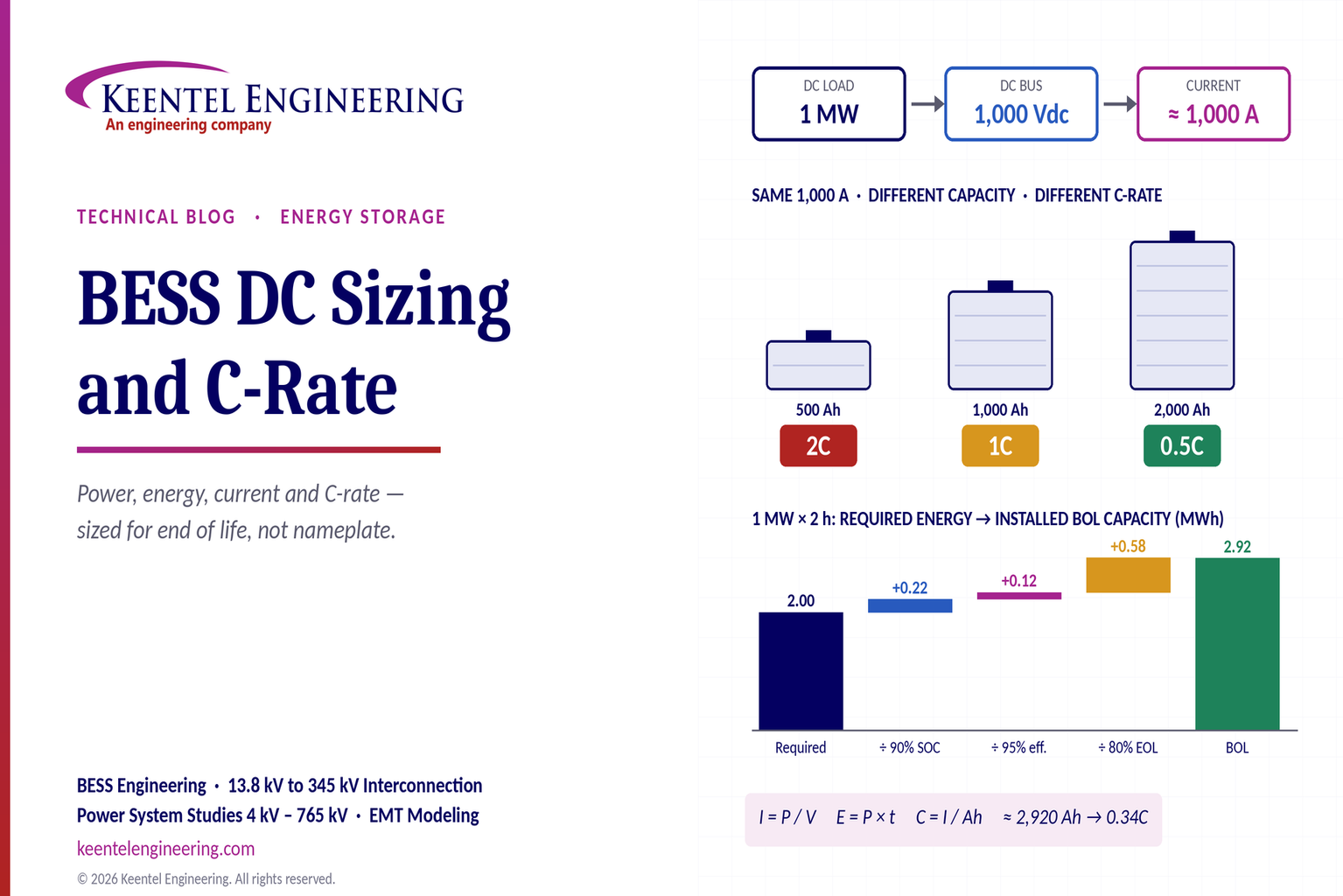
Learn BESS DC sizing with power, energy, current and C-rate calculations, battery losses, degradation and a 100 MW/400 MWh utility-scale example.
By SANDIP R PATEL
•
October 10, 2026
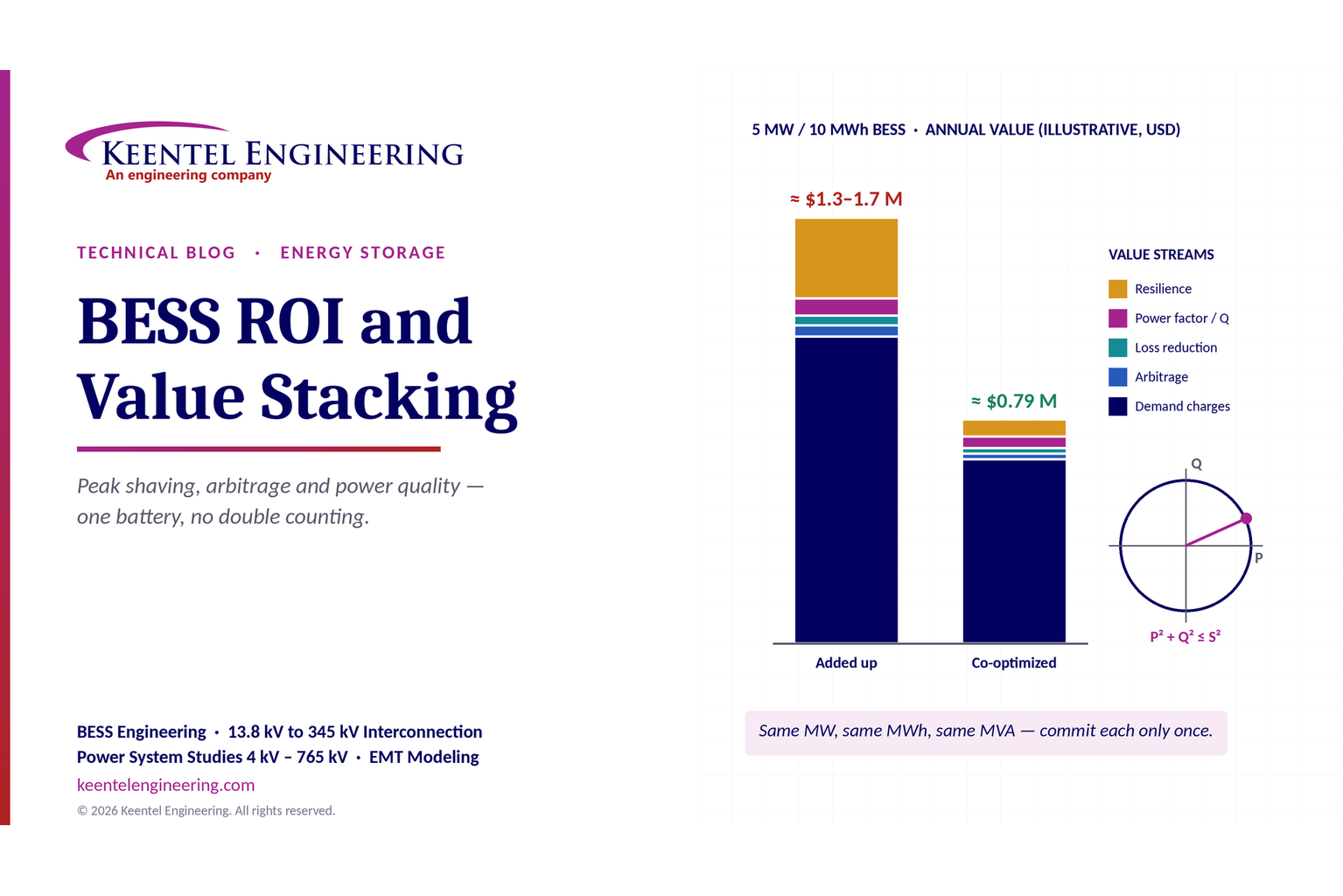
Learn how BESS ROI is calculated using peak shaving, energy arbitrage, power quality and battery storage economics, with a practical 5 MW/10 MWh example.
By SANDIP R PATEL
•
October 10, 2026
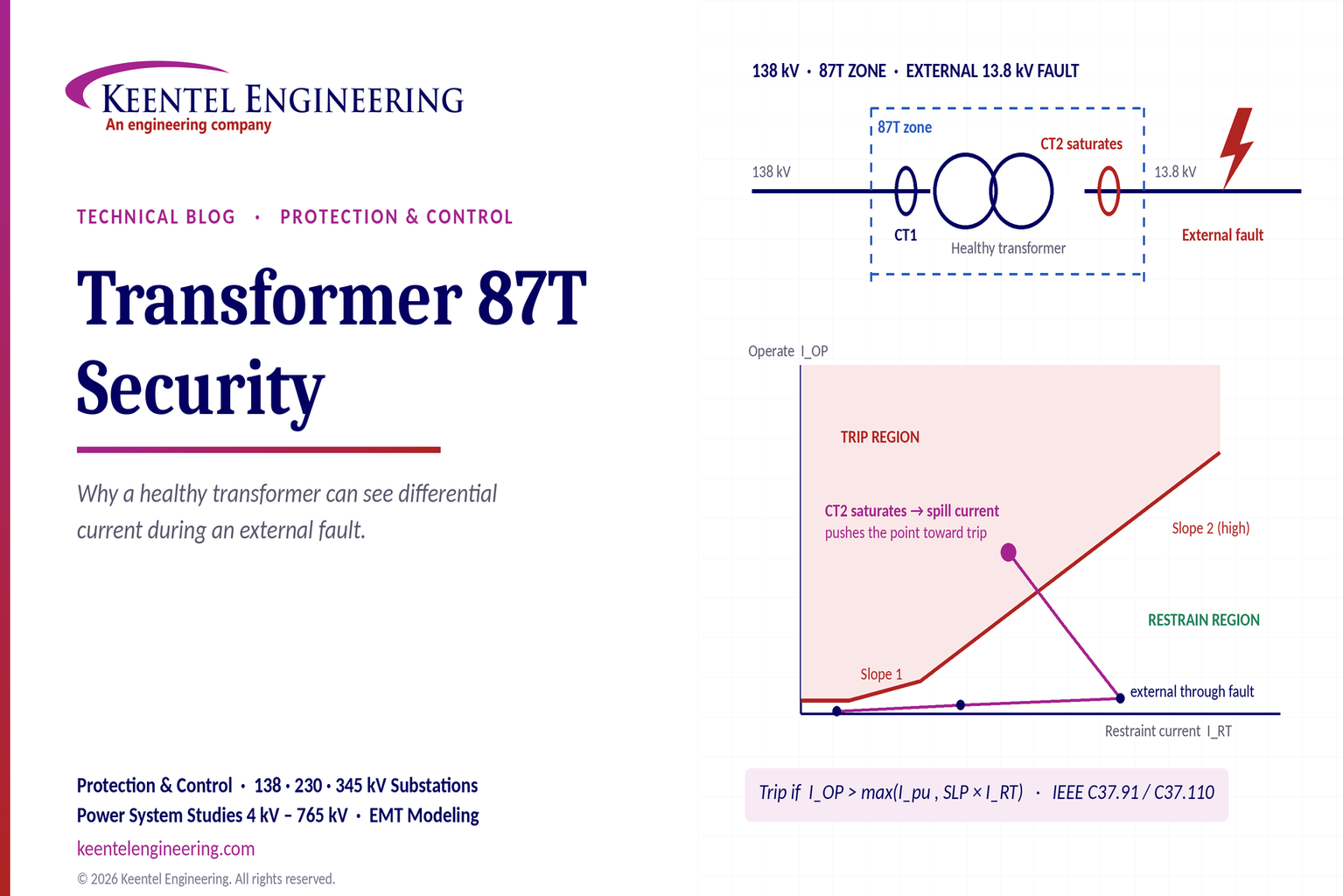
Learn why transformer differential relays detect current during external faults, how CT saturation causes spill current, and how secure 87T protection prevents trips.
By SANDIP R PATEL
•
October 10, 2026
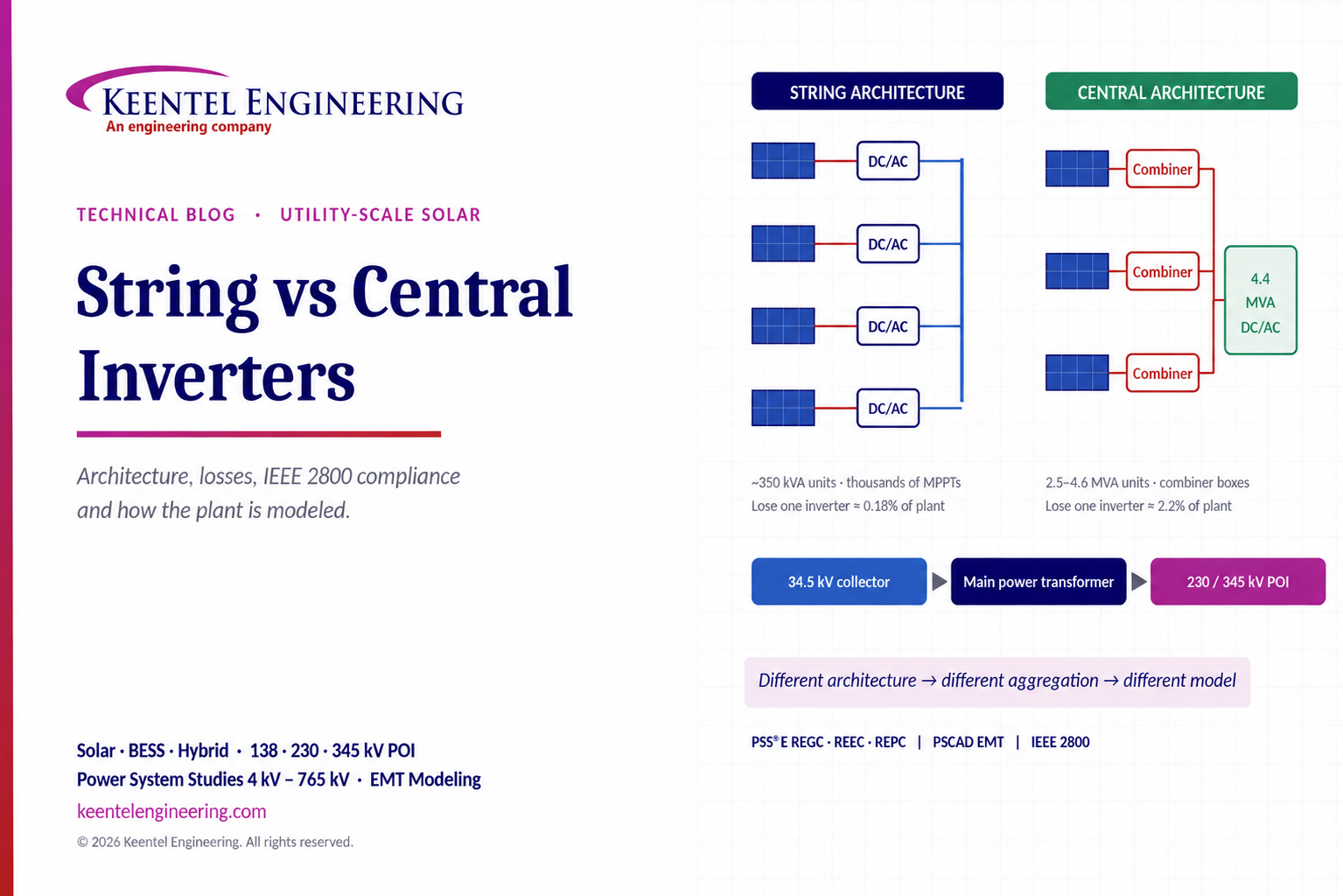
Compare string vs central inverters for utility-scale solar, including efficiency, maintenance, grid compliance, reactive power and interconnection studies.
By SANDIP R PATEL
•
October 9, 2026
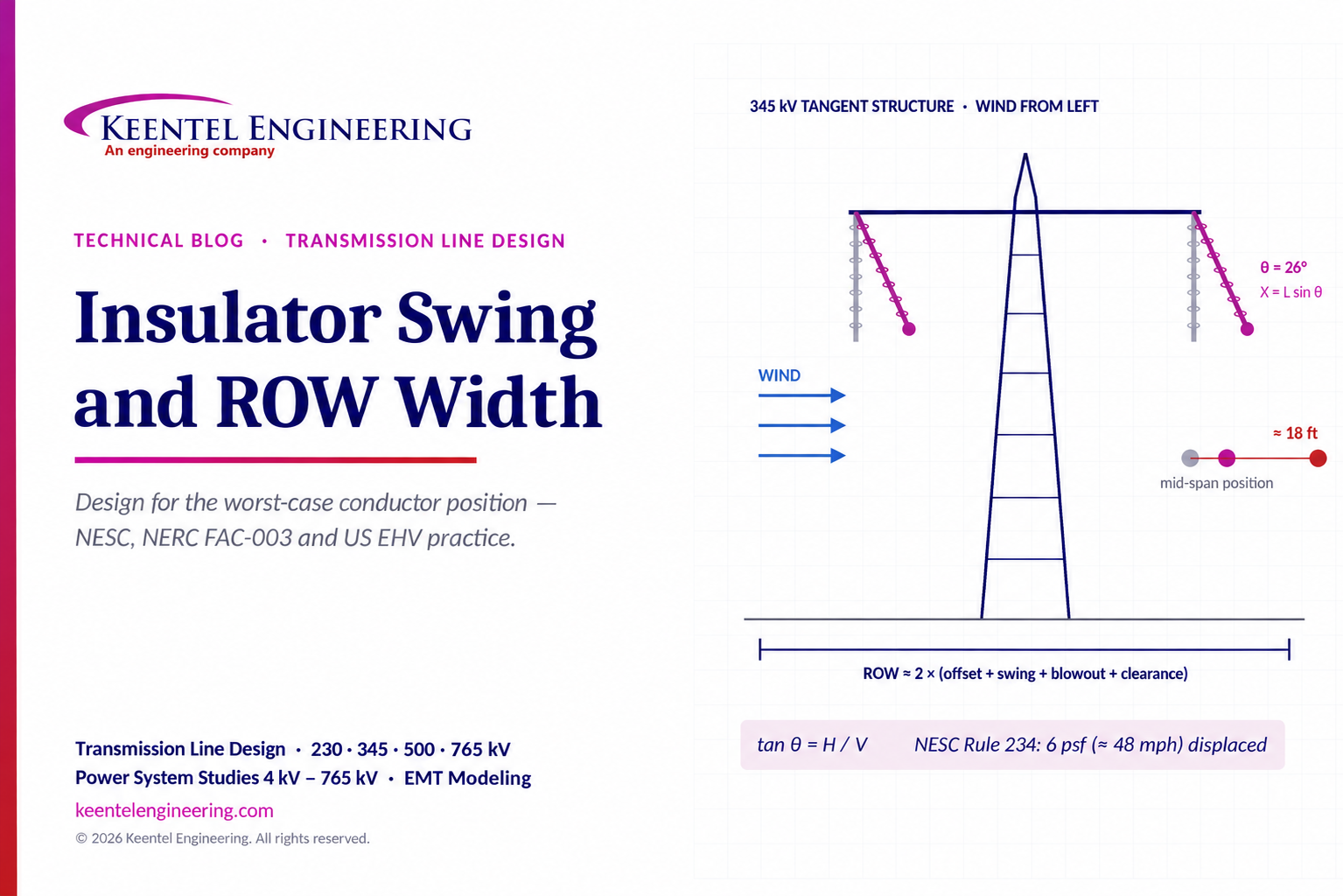
Learn how insulator swing angle and conductor blowout affect transmission line ROW width, with NESC clearances, NERC FAC-003 guidance, and a 345 kV example.
Copy
By SANDIP R PATEL
•
October 3, 2026
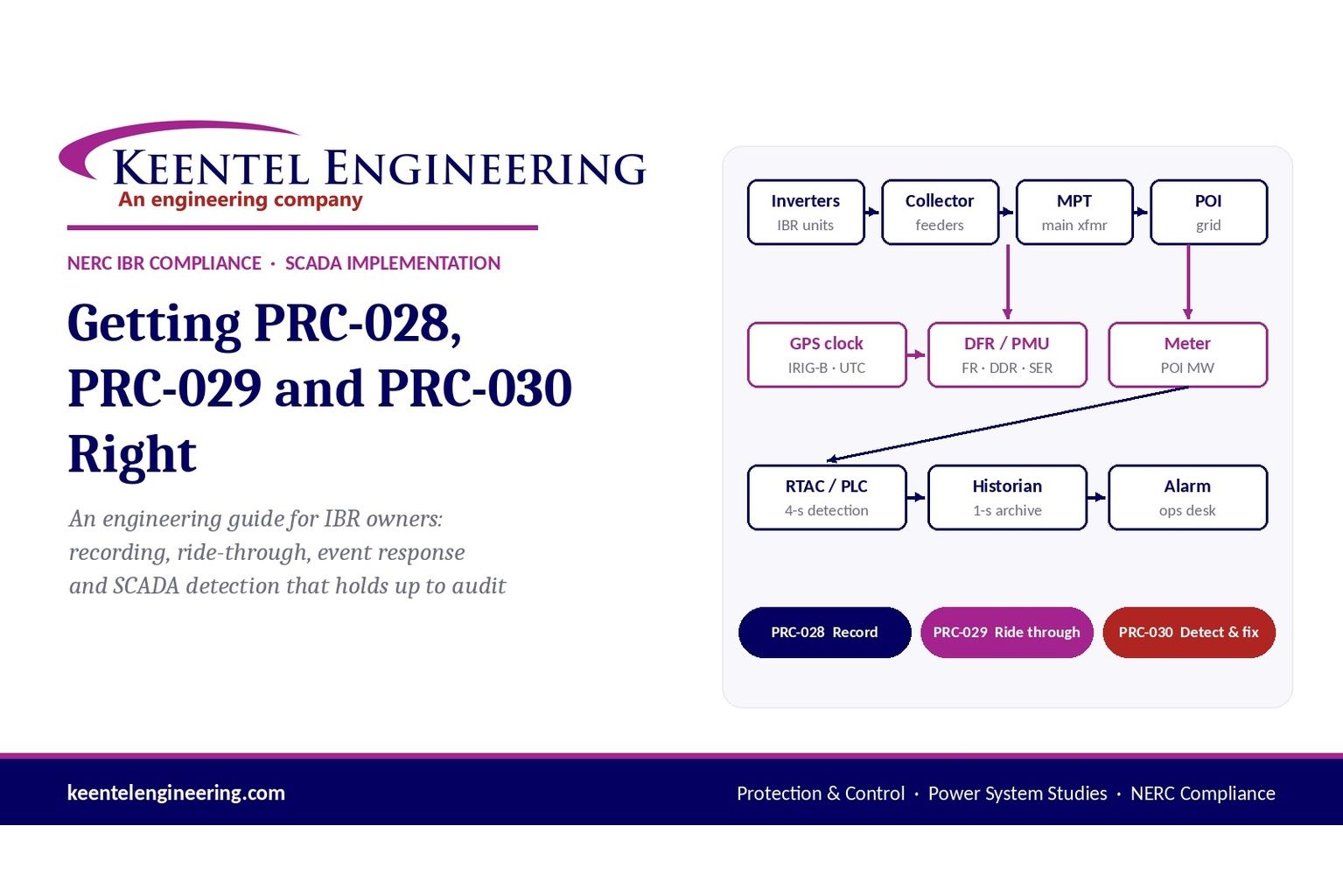
Engineering guide to PRC-028 disturbance recording, PRC-029 ride-through and PRC-030 event detection for inverter-based resources.
By SANDIP R PATEL
•
October 3, 2026
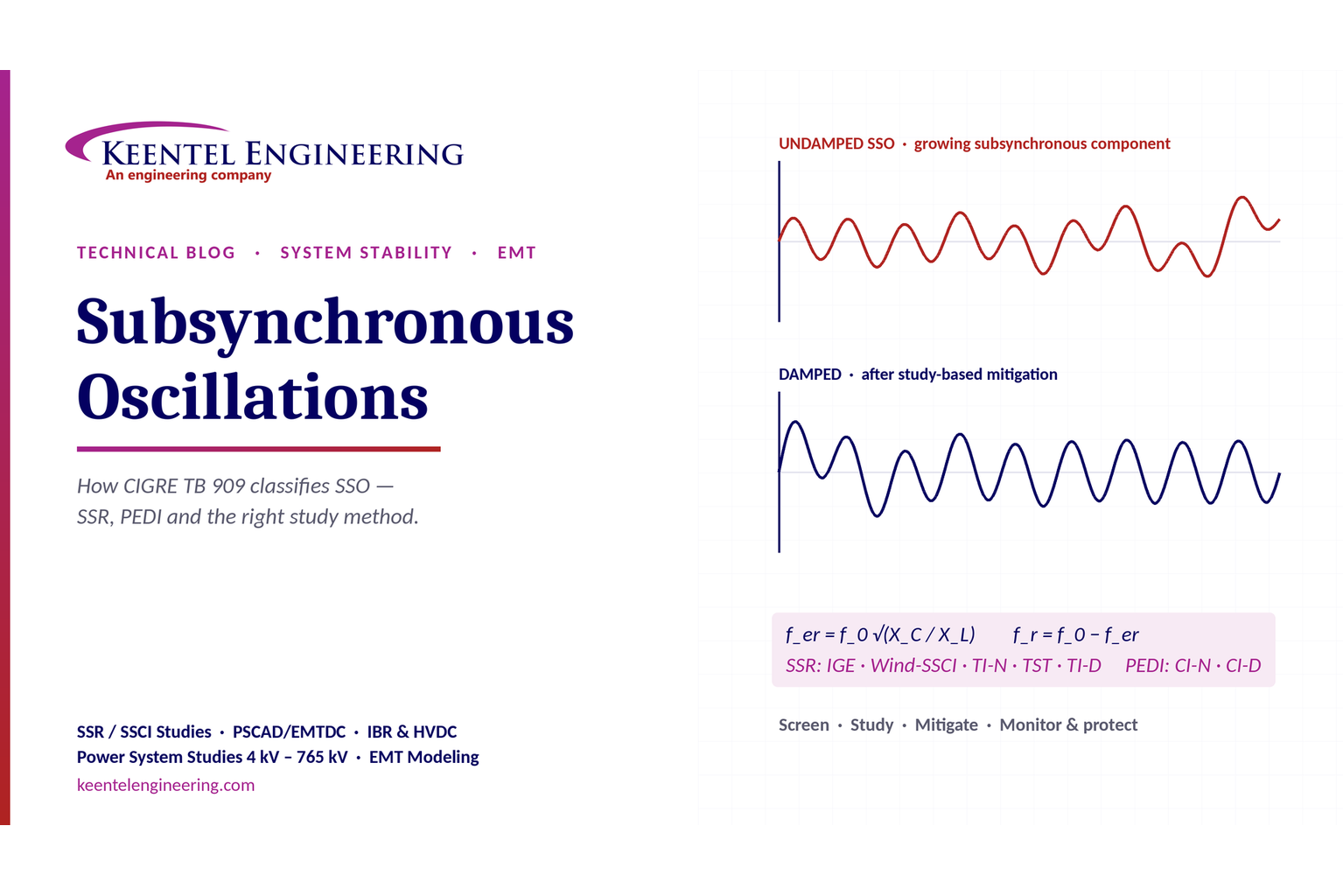
A practical guide to SSO classification, SSR, PEDI, Wind-SSCI, EMT analysis, mitigation and protection based on CIGRE TB 909.